A walkthrough of every screen a feedlot operator, an admin, or a partner customer will use day-to-day. Every screenshot in this guide came from a live walkthrough of the demo operation Cattle Logic Demo Ranch running locally against real demo data — two pens of cattle (LOT-DEMO-001 and LOT-DEMO-002), a real ration, real treatment protocols, real inventory, and a real closeout report.
If you're a sales engineer demoing the platform, read top-to-bottom. If you're a customer trying to find one specific feature, jump to the Page reference table at the bottom.
Browse the guide
16 chapters covering every screen the operator, owner, and admin will use. Click any card to jump in.
What is Cattle Logic?
Cattle Logic is a feedlot management platform for cow-calf operators, backgrounders, and finishing yards. It's the workbook your yard manager keeps in their head — every receipt, every feed call, every treatment, every sort, every closeout — turned into one phone-friendly app that works whether the operator is standing in the alley or on the road home.
The app handles five things really well:
- Tracking cattle from the day they arrive to the day they ship — head counts always reconcile.
- Feed and rations — daily DM calls, FIFO commodity inventory, version-tracked ration recipes.
- Health and protocols — treatment events, hospital pens, mortality, withdrawal periods.
- Cost truth — every cost (feed, drugs, yardage, interest, death loss) rolls up into a per-head, per-cwt cost of gain at any time.
- Closeout — when a lot ships, the report tells you whether you made money on it, and why.
Built mobile-first because that's where ranchers work. There's an iOS app, an Android app, and a web app that run the same code. Offline-first for the modules ranchers use in the alley with no signal — feed, health, expenses.
The cattle lifecycle at a glance
Six stages. The doc walks through each one in order.
| Step | What happens | Who does it | Sections |
|---|---|---|---|
| 1. Arrive | Cattle truck pulls in. Operator records head, weight, gender, origin, customer. | Owner / employee | §5 |
| 2. Feed | Operator builds a ration, calls feed daily, tracks DM consumption per pen. | Employee | §6 |
| 3. Treat | Sick cattle move to a hospital pen, get protocol-driven drugs. | Owner / employee | §7 |
| 4. Sort/merge | Operator redistributes cattle between lots/pens with valuation tracking. | Owner | §9 |
| 5. Ship | Cattle leave for the buyer or packer. Sale weights captured. | Owner | §9 |
| 6. Close out | Cost of gain, breakeven, and P&L tell you what the lot actually earned. | Owner | §10 |
Demo data used throughout this guide: Cattle Logic Demo Ranch with two active lots (LOT-DEMO-001, LOT-DEMO-002), a customer (Acme Cattle Co), a partner customer (Demo Buyer LLC), a Starter ration, a Finisher ration, three commodities (Corn, DDG, Hay), three pharmaceuticals (Banamine, Ivermectin, Resflor), one BRD treatment protocol, and one mortality event.
First impressions — landing & login
Screen tour · swipe →
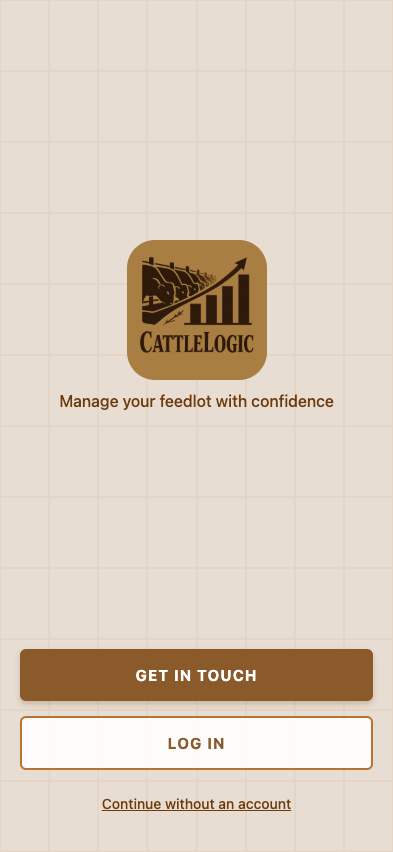
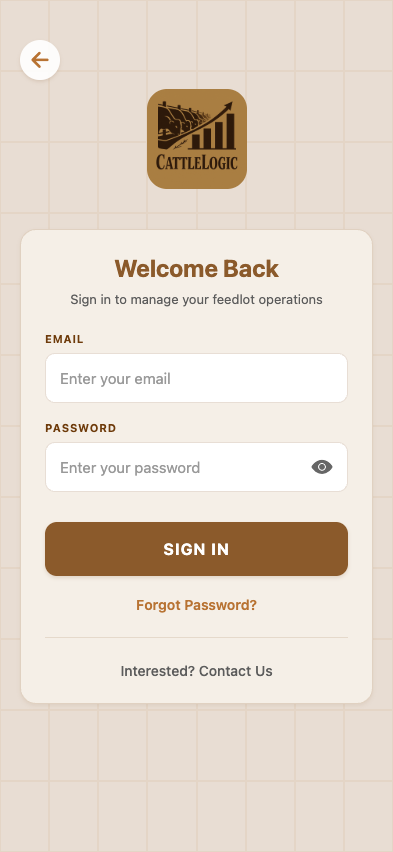
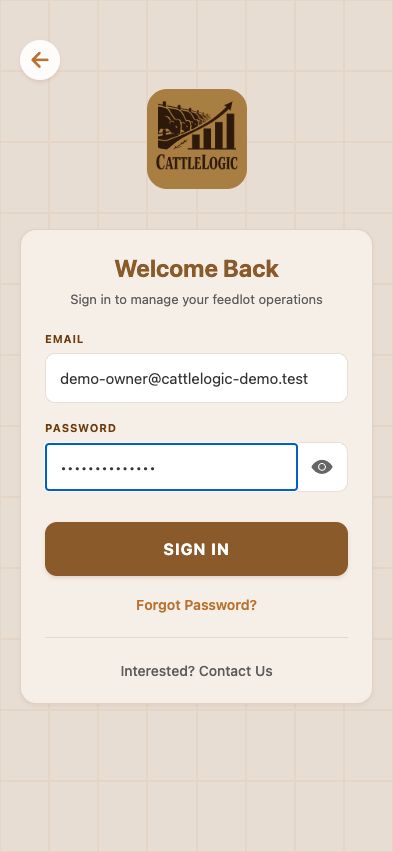
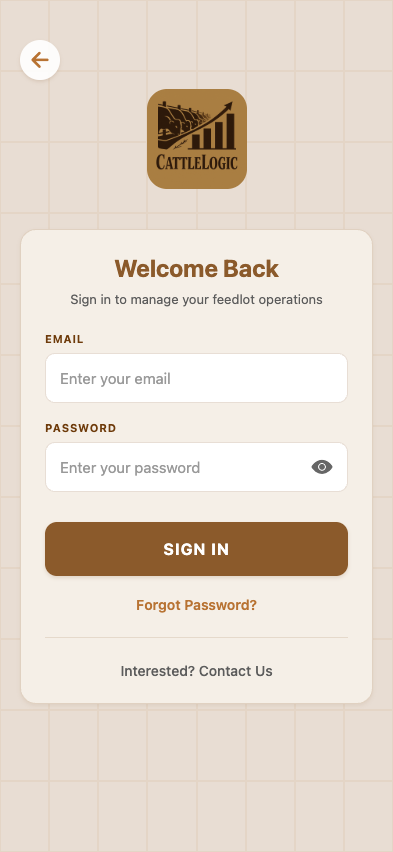
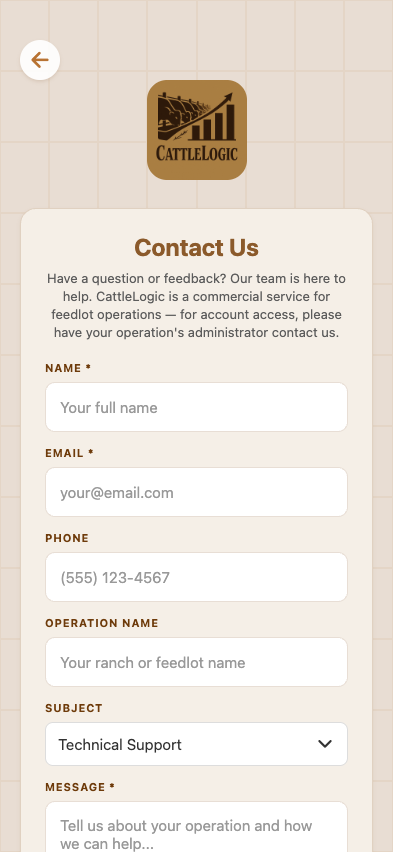
A new operator opens the web app at the demo URL or opens the mobile app on their phone. The first screen sets expectations: this is a feedlot tool, not a herd management app — the brand uses warm pasture browns, the typography is direct, and the very first thing the operator sees is the choice they actually have: log in, get in touch, or browse without an account.
Tapping LOG IN routes to the auth screen. There's no signup-yourself flow — operations are provisioned through a sales conversation, then the owner is invited and creates the operation as part of accepting the invitation. (See §16 for why.)
The owner enters their email and password. The mobile keyboard hides the SIGN IN button by default; tapping into the password field auto-scrolls.
Other auth screens
New invitee signup completes the new-user side of the invitation flow. The form captures first/last name and a password.
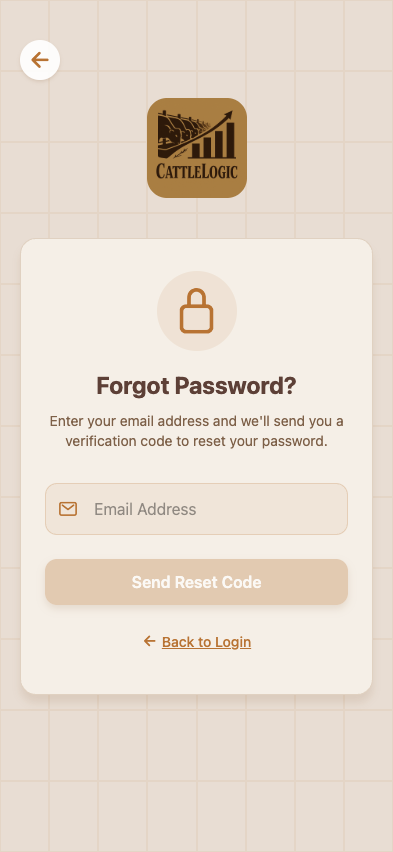
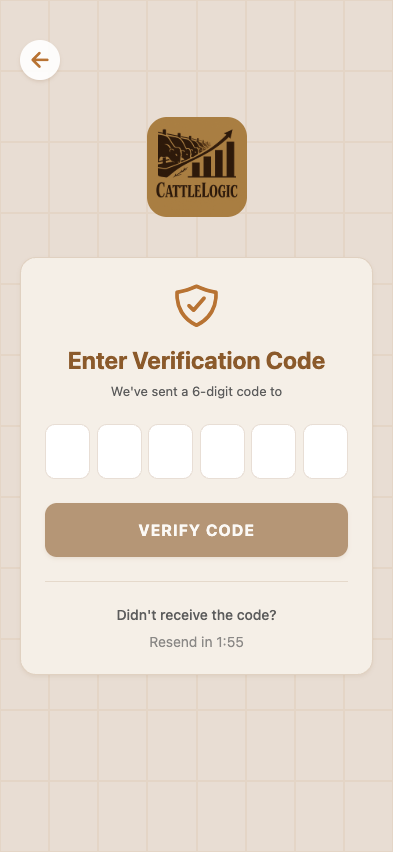
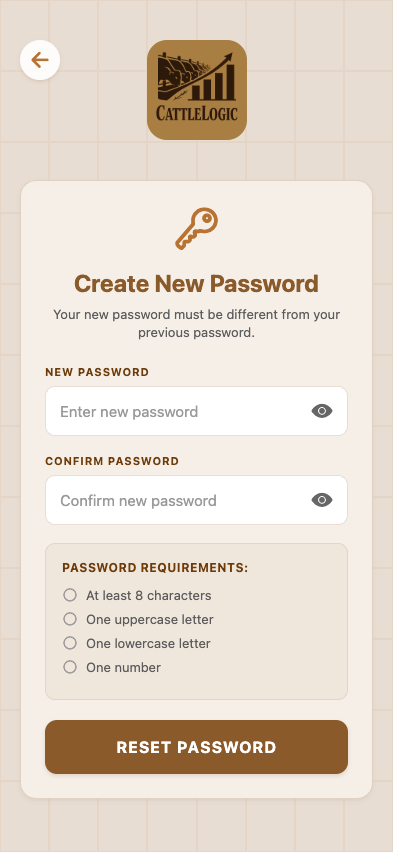
Forgot password kicks off the OTP flow.
The dashboard
Screen tour · swipe →
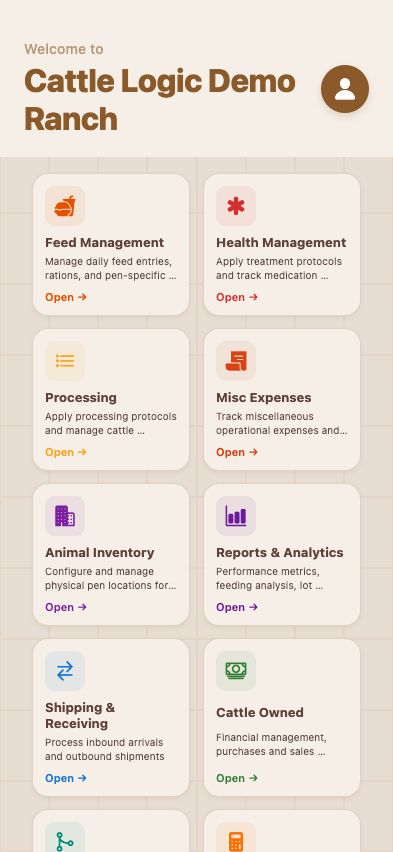
After login, the operator lands on a feature grid. Every module the operation has access to appears as a card with a friendly icon, a short description, and an Open → link. The greeting at the top — "Welcome to Cattle Logic Demo Ranch" — confirms the active operation.
The 14 modules — left-to-right, top-to-bottom on a phone:
| # | Card | What it does |
|---|---|---|
| 1 | Feed Management | Daily feed calls, ration builder, pen-by-pen DM tracking |
| 2 | Health Management | Treatments, protocols, mortality, hospital pens |
| 3 | Processing | Arrival/reprocessing protocols (vaccines, implants, tags) |
| 4 | Misc Expenses | Custom one-off operational costs |
| 5 | Animal Inventory | Pens, lot-pen assignments, capacity |
| 6 | Reports & Analytics | Closeouts, performance, P&L, breakeven |
| 7 | Shipping & Receiving | Inbound and outbound cattle receipts |
| 8 | Cattle Owned | Per-customer cattle inventory, purchases, sales |
| 9 | Sort & Merge Lots | Move cattle between lots with auto-valuation |
| 10 | Breakeven Projections | Buy sheets — what's the max you can pay? |
| 11 | Allocations | Recurring cost rules per lot |
| 12 | Feed & Pharma Inventory | Commodity loads, pharma batches, FIFO costs |
| 13 | Invoicing | Customer invoices, PDF export |
| 14 | Users & Permissions | Invite, manage roles, fine-grained permissions |
The avatar in the top right opens the operator's profile. The whole grid is permission-aware: cards a customer-role user shouldn't see (Users & Permissions, Allocations) don't render at all.
Step 1 — Cattle arrive
Screen tour · swipe →
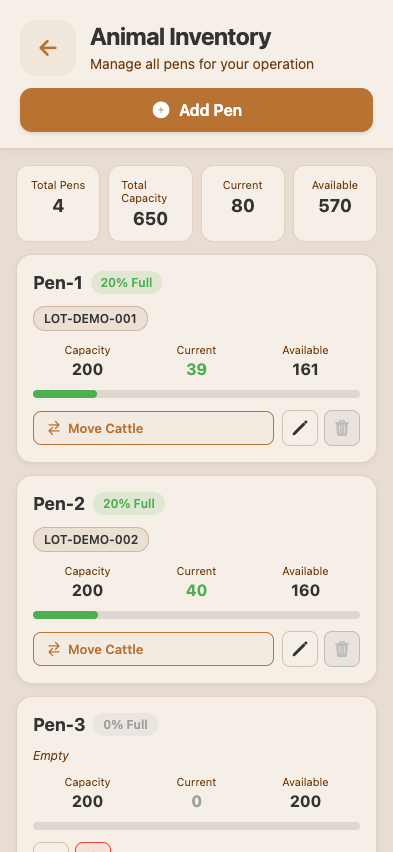
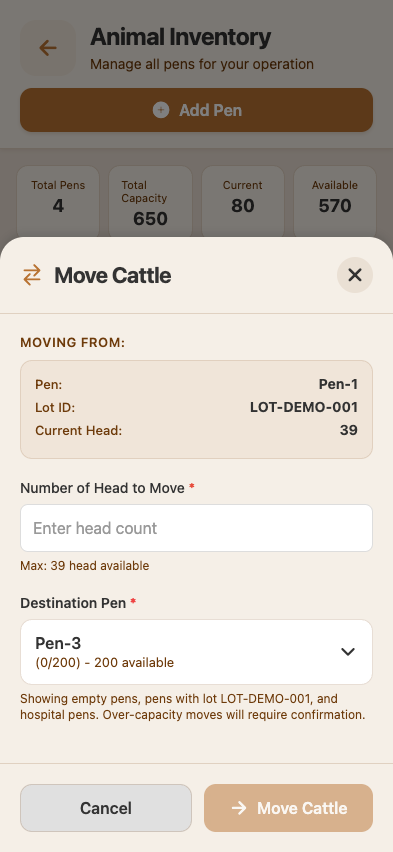
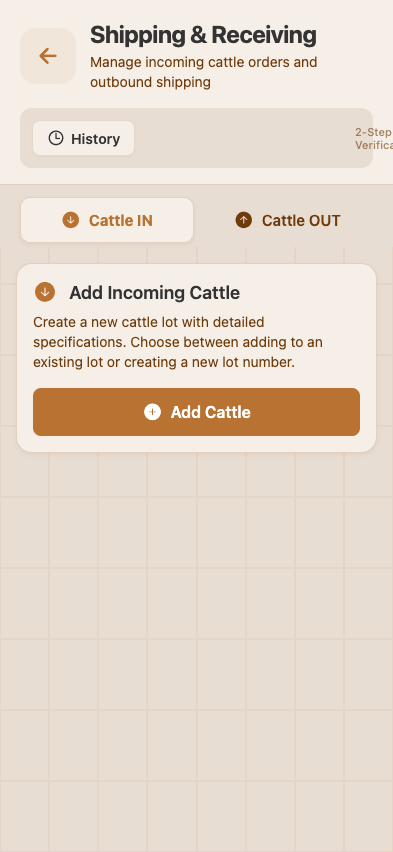
A truck pulls into the yard. The operator opens the Animal Inventory card to see the current pen layout.
Each pen card shows the lot it's currently holding, the head count, and a fill percentage against capacity. Tapping a pen opens a card with quick actions — split, move, reassign.
To record a brand-new arrival, the operator goes to Shipping & Receiving instead. This module has two tabs — Cattle IN and Cattle OUT — and is the entry point for both halves of the lifecycle.
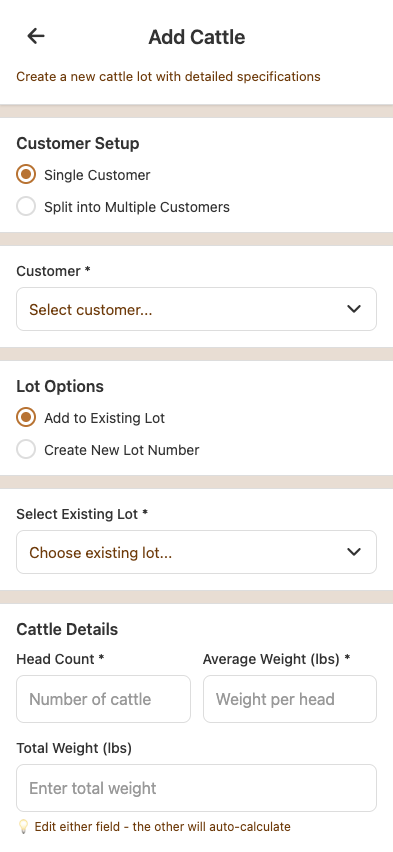
Tapping Add Incoming Cattle opens a multi-step form. The owner records:
- Customer — who owns these cattle? (Acme Cattle Co, Demo Buyer LLC, or a new entry.)
- Partnerships — multi-owner cattle? Add partners and percentages.
- Lot ID — pick an existing lot to merge into, or create a new one.
- Head count, average weight, gender, weaned status, risk status, origin.
- Photos / videos of the cattle (optional but useful for disputes).
When an arrival is saved, the system auto-creates a CattleInbound record and (if it's a new lot) a fresh Lot with the right pen assignment. Head counts at the lot level go up; the pen capacity updates immediately.
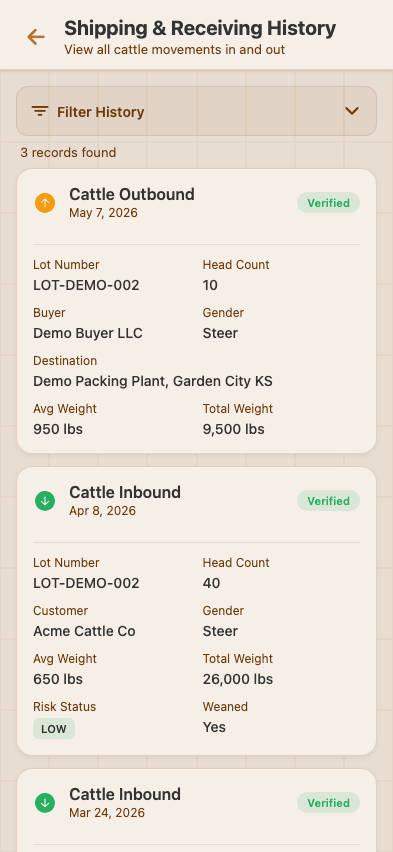
The operator can also pull up the full History page to see every arrival and shipment ever recorded for the operation.
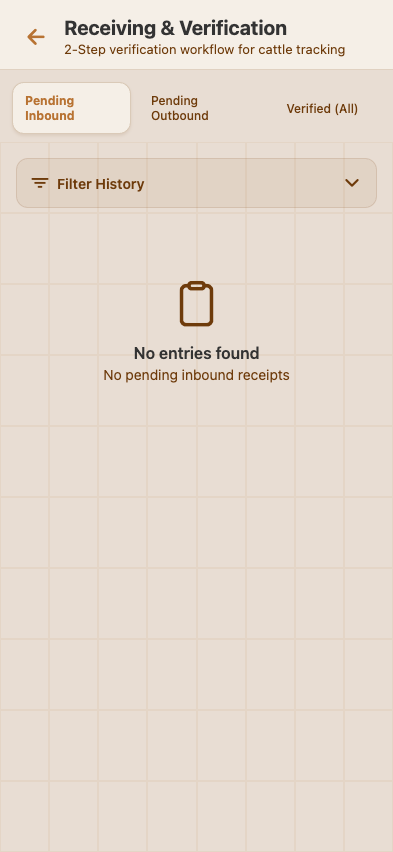
If the operation has 2-step verification turned on, freshly-recorded arrivals show up in a verification queue first. A second user has to verify before the receipts and head counts are committed.
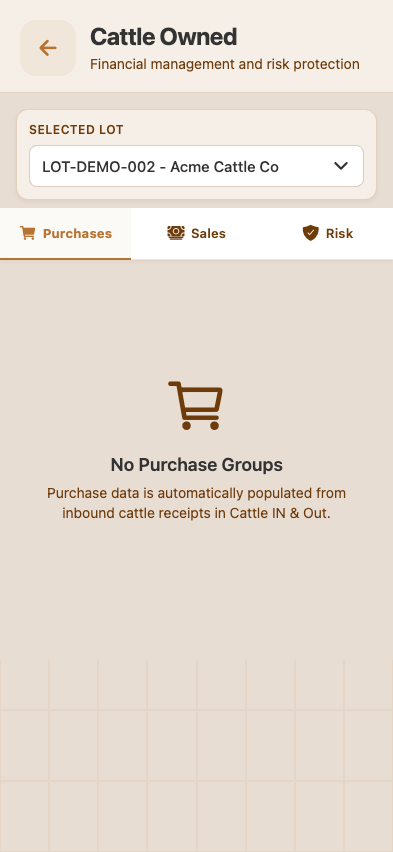
Cattle Owned (per-customer view)
Customers in partnerships want to see their cattle, not yours. The Cattle Owned view filters by customer.
Step 2 — Feeding & rations
Screen tour · swipe →
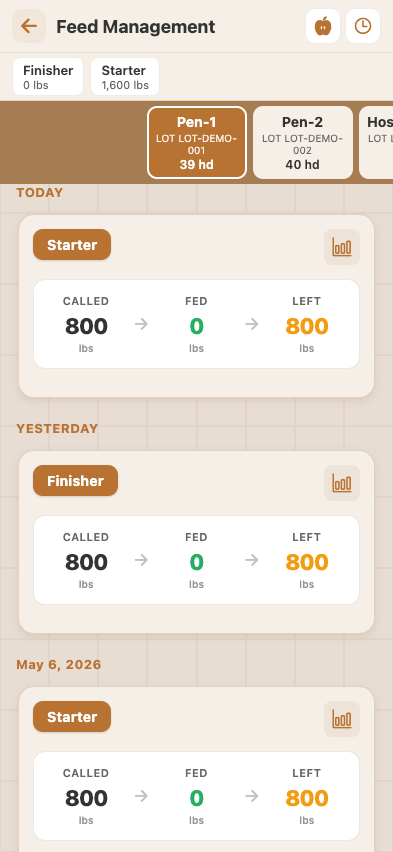
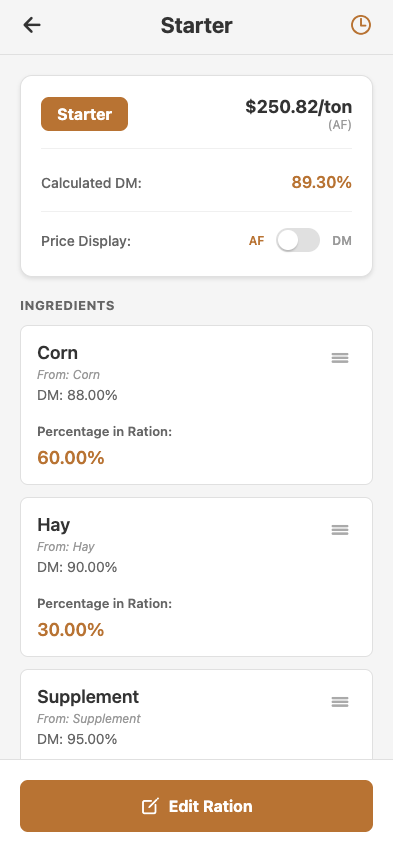
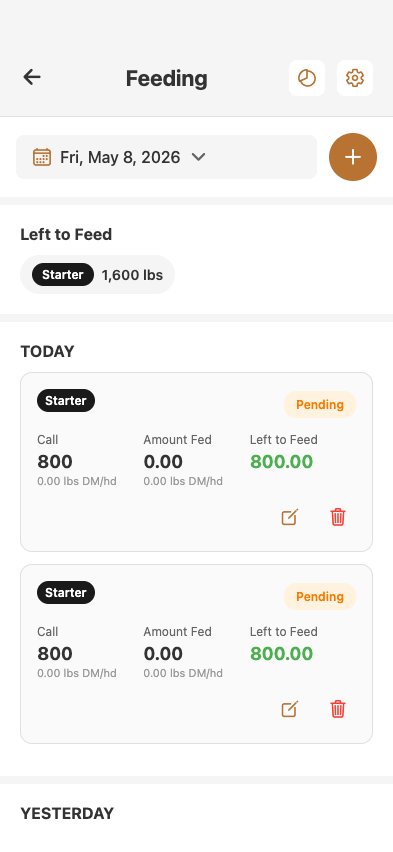
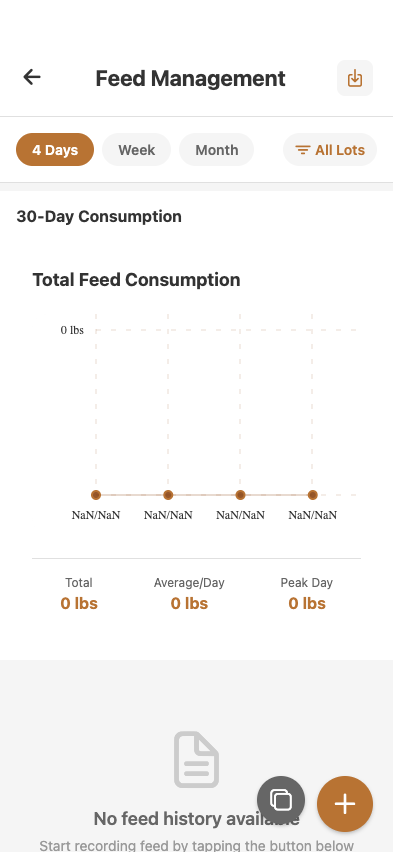
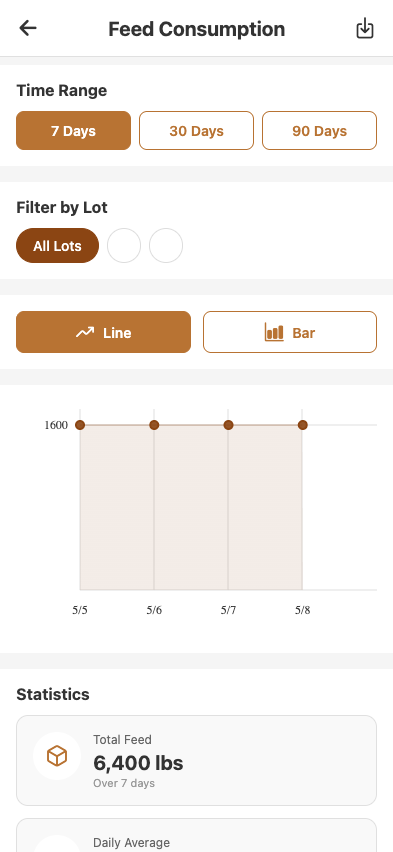
Daily feeding is the highest-frequency activity in a feedlot. The Feed Management hub shows the day's status — how much feed has been called, how much delivered, and which pens are still owed.
Across the top: the day's totals (Finisher: 0 lbs, Starter: 1,600 lbs). Below: per-pen cards with the called amount, the fed amount, and the delta. A pen that's been fully fed turns green; pens still owed feed stay highlighted.
Building a ration
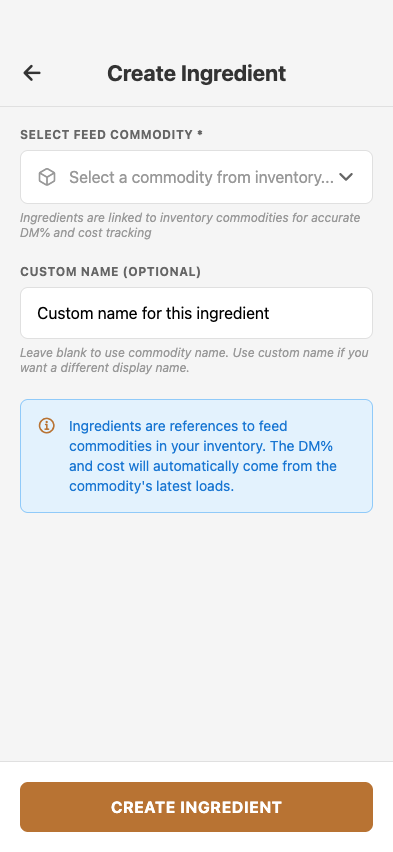
To build a new ration, the operator opens the ingredient editor.
Each ingredient is a feed commodity (corn, DDG, hay, silage, premix, etc.) with a DM percentage and a cost. The cost auto-pulls from the FIFO front of the inventory load — when the oldest load empties, the price ratchets to the next load.
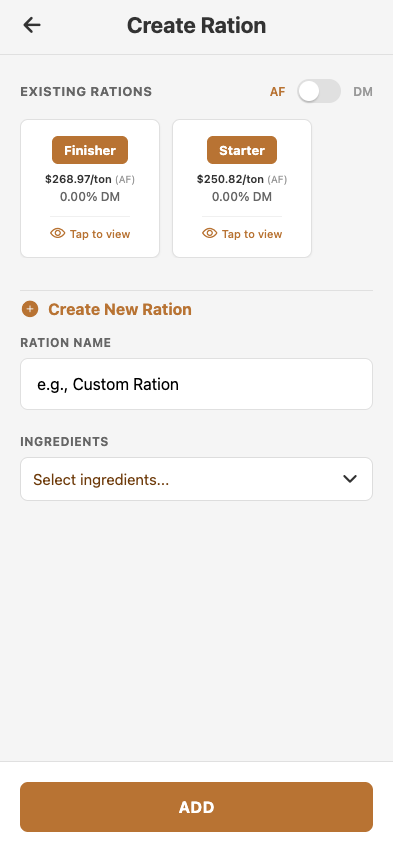
Then the ration:
Rations are versioned. When the operator changes an ingredient mix, a new version snapshots the old one — feed events recorded yesterday still report against yesterday's ration, not today's.
Viewing a saved ration shows the load calculator — enter how much you want to mix, the screen tells you how many pounds of each ingredient.
Feed entry — single pen
Tap a pen on the dashboard, enter the call amount, save. The system calculates DM-per-head and percent-body-weight automatically.
Batch feed entry
For yards with many pens to feed quickly, the enhanced entry view lets operators move from pen to pen in one screen.
Feed graph
For any pen, the operator can see DM consumption over time — track average daily intake, spot days where intake dropped (a leading indicator of sickness), compare projections to actual.
Step 3 — Health, treatments, mortality
Screen tour · swipe →
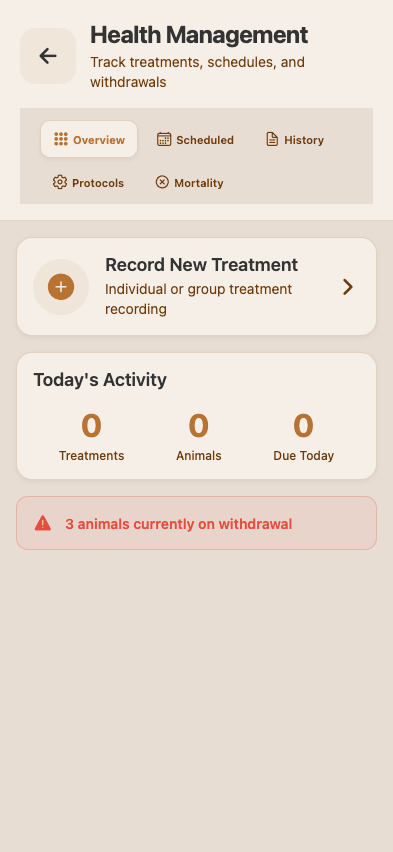
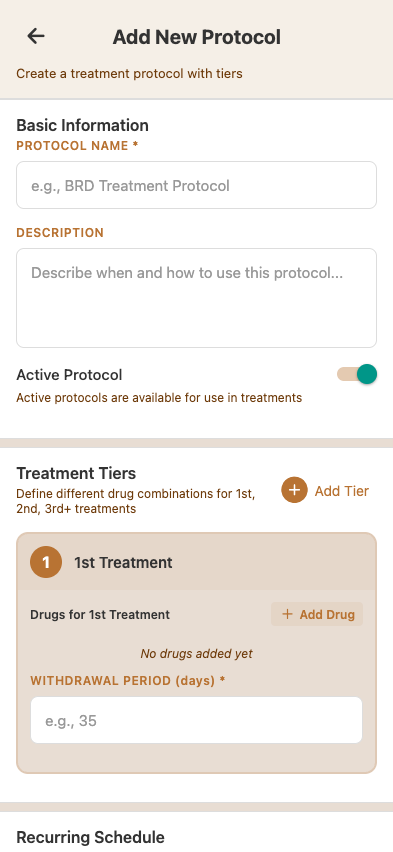
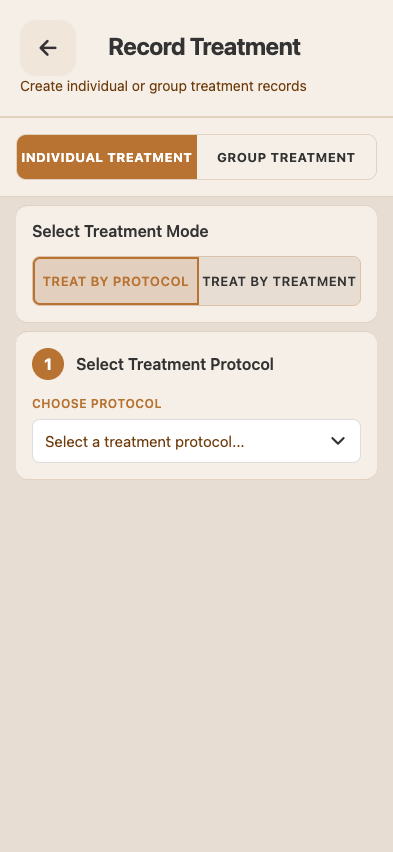
Health work happens in two places: scheduled (a protocol says treat this lot in 14 days) and reactive (this animal looks sick today).
Treatment protocols
Protocols are tiered treatment recipes. Tier 1 might be Banamine + Resflor. If the animal doesn't respond in 72 hours, Tier 2 escalates to a different drug. Each tier has a withdrawal period that the system enforces automatically — cattle in withdrawal can't be shipped to slaughter.
Recording a treatment
When an animal needs a treatment, the operator records the event with the animal's tag, the protocol, and which tier was applied. The system deducts the right pharmaceutical from inventory (FIFO from oldest active batch), captures the cost at the time of treatment, and starts the withdrawal clock.
Tag history
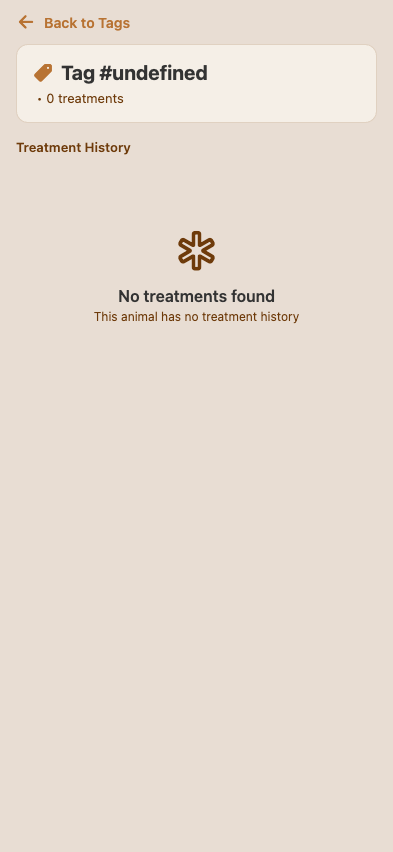
Every treatment a single animal has had — by tag number — is one tap away.
Scheduled treatments
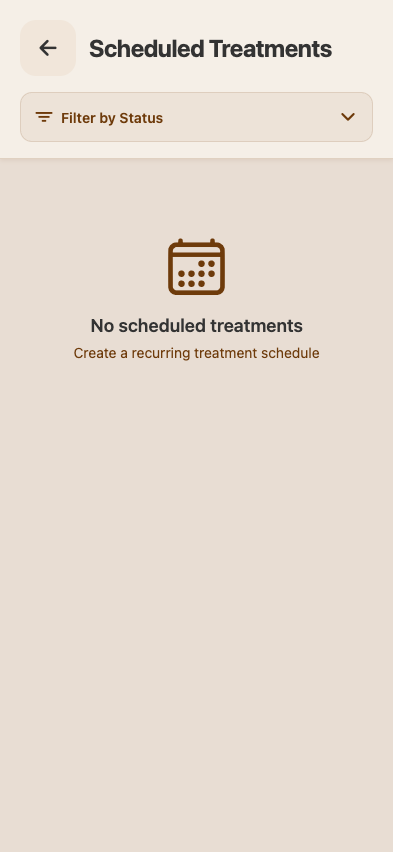
When a protocol is applied, scheduled follow-ups are auto-created. The Scheduled Treatments view is the queue of what's coming up.
Mortality
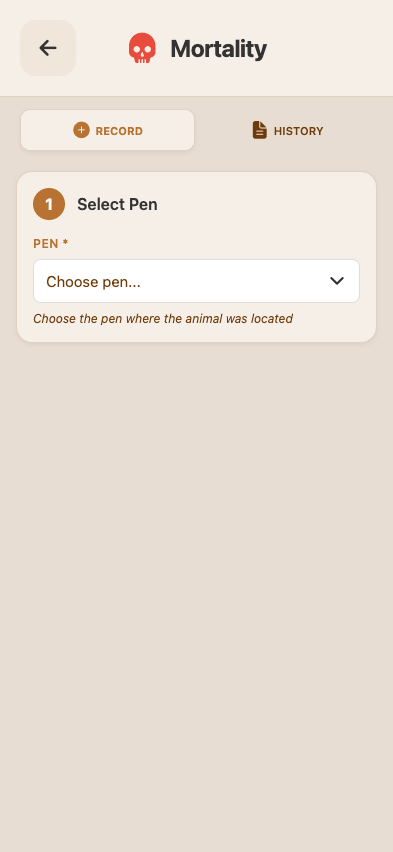
When an animal dies, the operator records it. Death loss flows into the cost-of-gain calculation as the purchase price of the dead head (not the in-yard value with feed, which would double-count).
Processing protocols
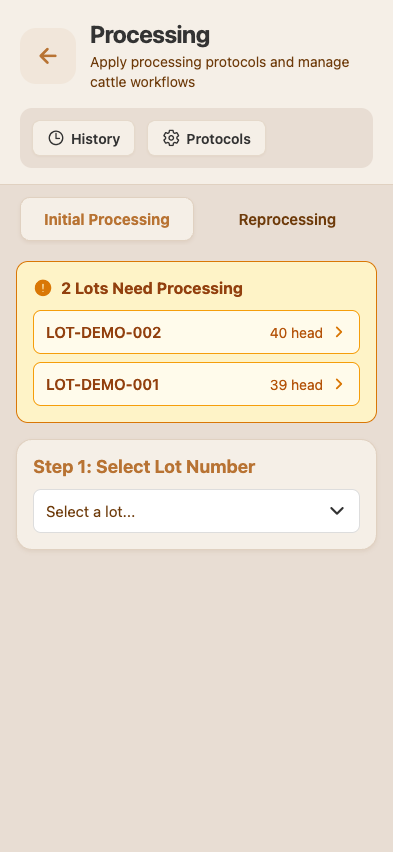
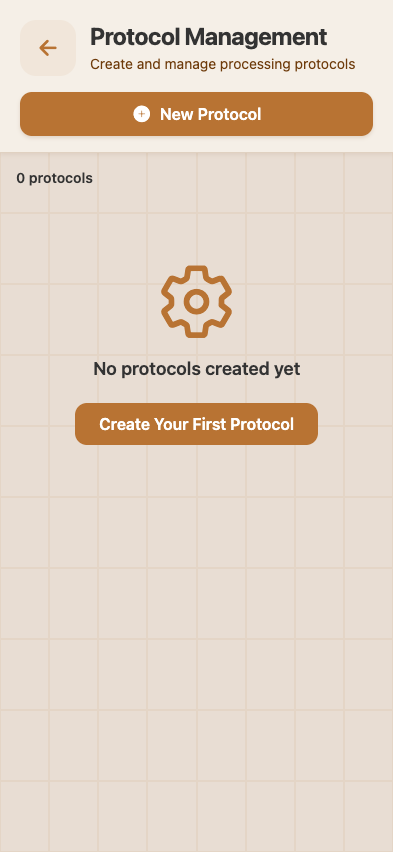
Separate from health treatments — processing protocols are the arrival processing routines (initial vaccines, growth implants, ear tagging, brand registration). The Processing module manages the recipes and applies them to incoming groups.
Step 4 — Inventory & hospital pens
Screen tour · swipe →
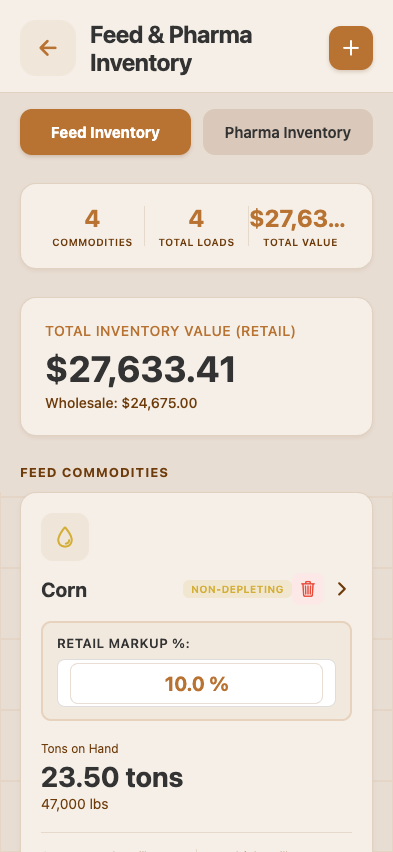
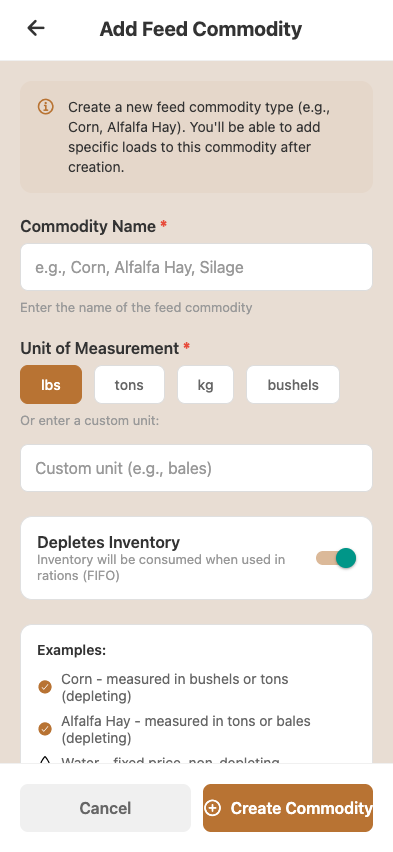
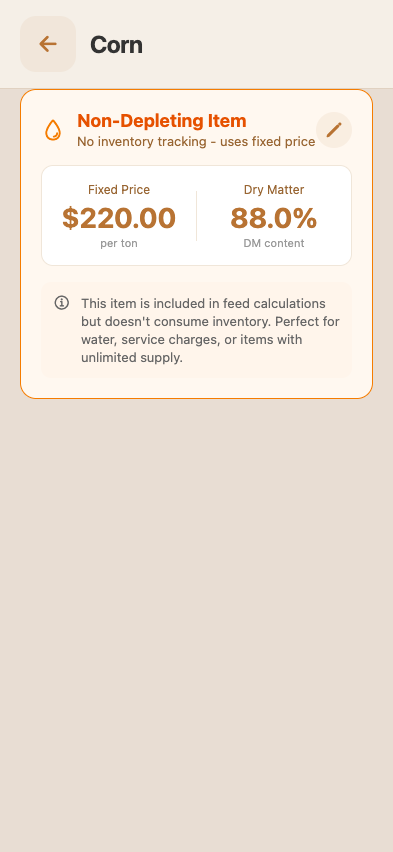
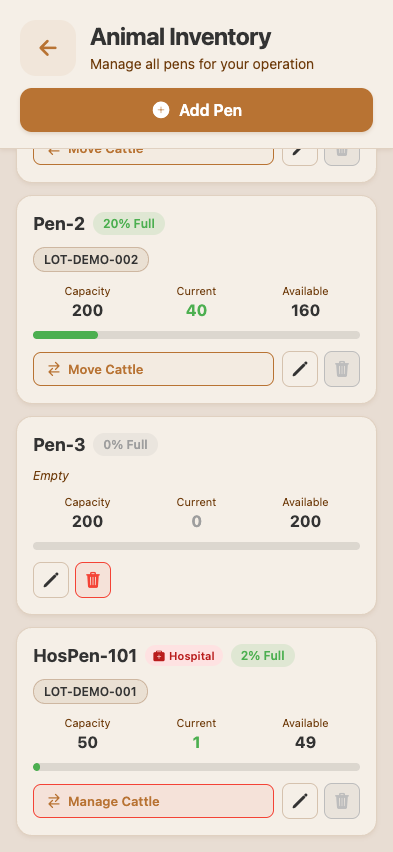
Two kinds of inventory: feed commodities (priced and tracked by ton) and pharmaceutical products (priced and tracked by unit). Both use FIFO — oldest load/batch costs against feed events and treatments first.
The wholesale-vs-retail split is important: invoicing and cost reports both default to retail, but the operator can see the wholesale cost at any time. Markup percentages are configured per commodity.
Adding a commodity
To track a new commodity, the operator records a load with the supplier, the tons, the price, and the DM%.
Commodity detail
Each commodity has a load history. FIFO depletion is visible — the oldest load is what's currently being charged against feed events; once it depletes, the cost ratchets to the next load.
Hospital pen
Hospital pens are special. Cattle moved to a hospital pen are still counted in their origin lot (not subtracted), so head counts always reconcile. The hospital pen view tracks who's in there and where they came from.
Step 5 — Sorting, merging, shipping
Screen tour · swipe →
Sort & merge
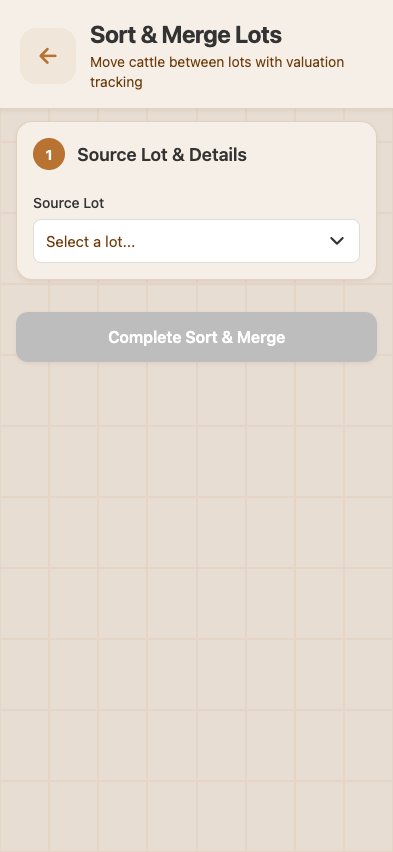
Mid-stream, operators redistribute cattle between lots. Maybe a heifer pen needs to be split into two by weight class. Maybe two lots got combined for finishing. Maybe a partner is buying out half a lot.
When an operator runs a sort/merge, the system auto-generates two records:
- A CattleOutbound receipt against the source lot (the cattle "left" via this transfer).
- A CattleInbound receipt against the destination lot (the cattle "arrived" via this transfer).
Both receipts are linked to the SortTransfer for audit. Head counts move correctly in both directions; if the source lot is now empty, the system auto-closes it (status → "shipped").
Shipping out
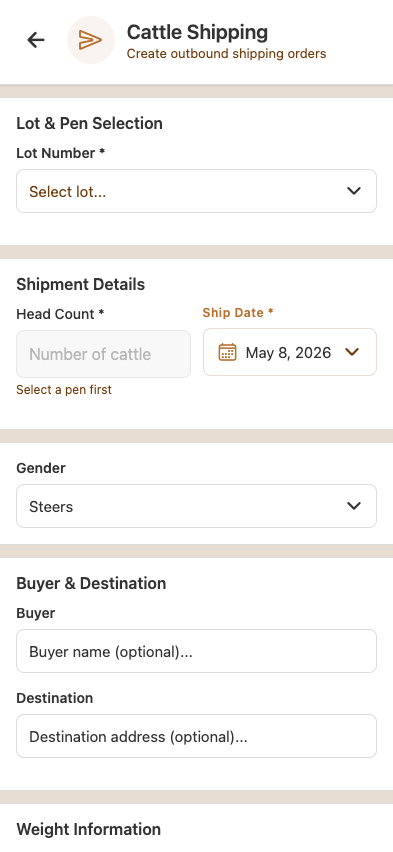
When cattle ship to the buyer or the packer, the operator creates a CattleOutbound record. The shipping list shows everything in flight.
The form captures sale price, sale weight, buyer, destination, and an optional "send notifications" toggle (which fires a push to anyone subscribed to shipment alerts on the operation).
If the operation has 2-step verification on, outbound also goes through the verification queue (§5).
Step 6 — The closeout report
Screen tour · swipe →
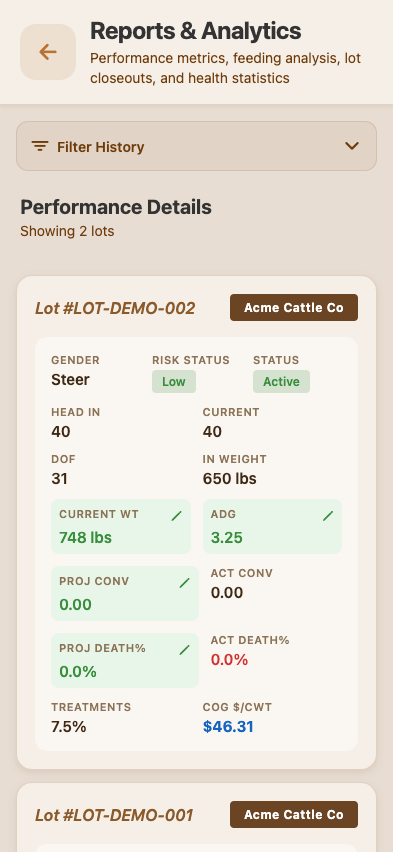
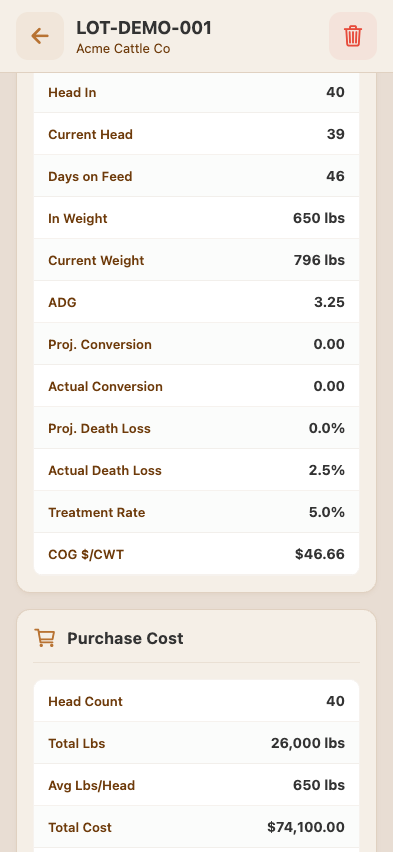
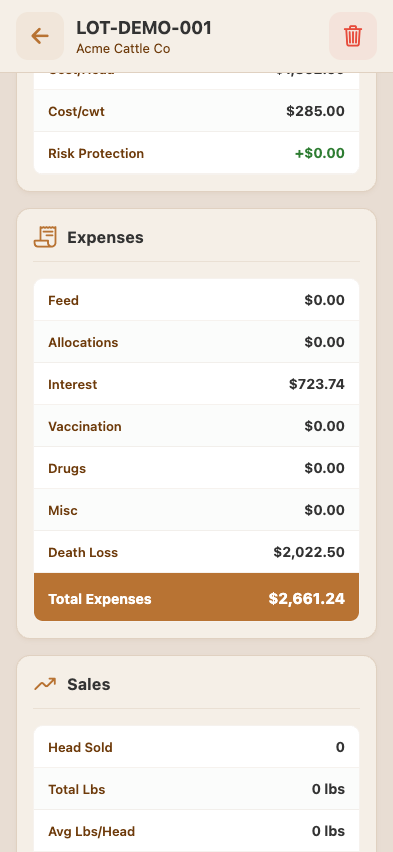
The closeout is the moment of truth. The operator opens Reports & Analytics and picks a lot.
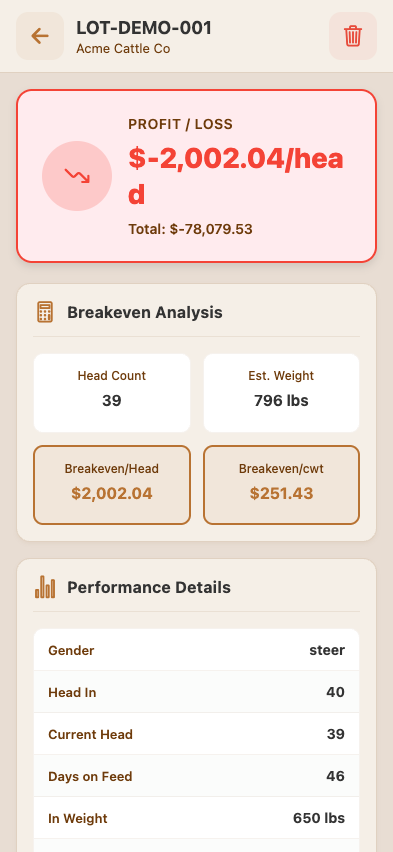
Tap a lot, get the closeout. Top of the screen: profit or loss, per head and total. The demo lot LOT-DEMO-001 is mid-feed — current head 39, in weight 650 lbs, current weight 796 lbs, 46 days on feed. The system has projected through to current state and shows a 1, 968.24/headloss * *sofar, **76,761.24 total.
Scrolling down, the operator sees the cost decomposition. Each line is a real, FIFO-priced cost — feed from the actual loads consumed, treatments from the actual batches used, yardage from the operator's per-day rate × head-days, and so on.
Below that, the breakeven analysis and projected sale value. If the operator hedged the sale price with a CME futures contract, the hedge P&L is shown separately so it doesn't get conflated with the cattle's underlying P&L.
Closeout reports are exportable as PDF (one PDF per lot) and data-exportable for spreadsheets. The report has an honest "includes interest" flag — interest accrual on the cattle purchase price is a meaningful cost, but it's broken out separately so the operator can see it.
Buy sheets — projecting profit before you buy
Screen tour · swipe →
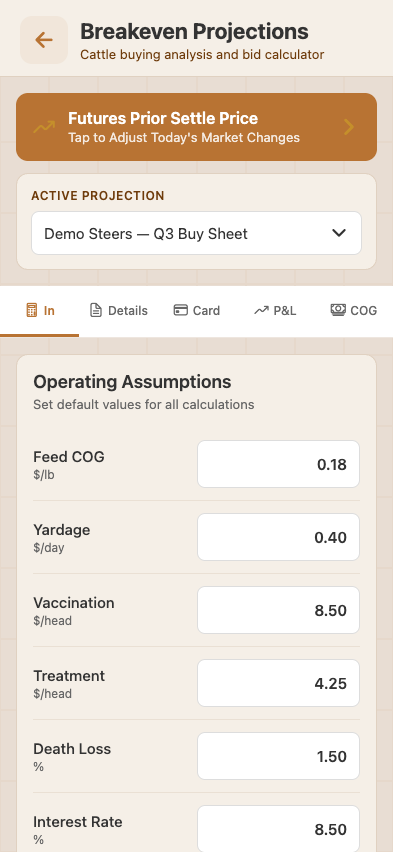
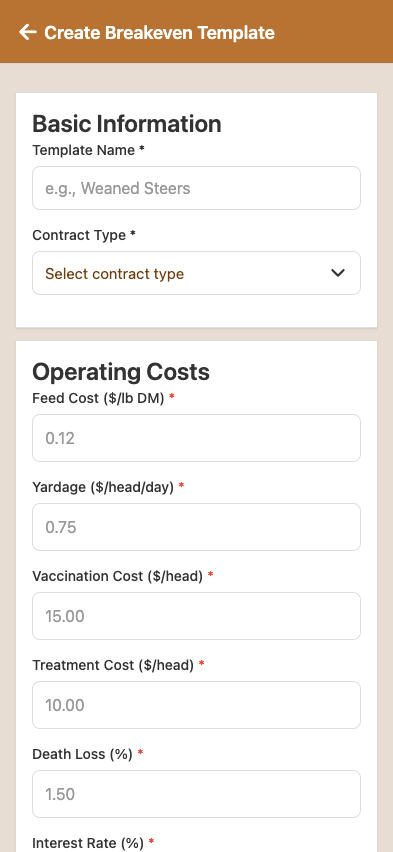
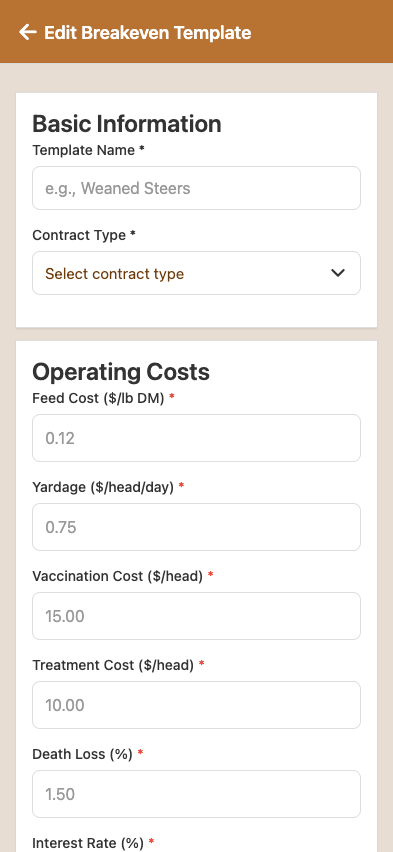
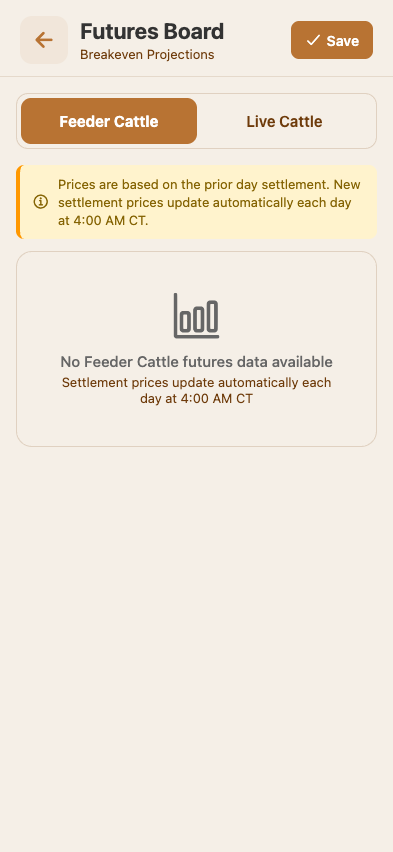
Before a truck of cattle arrives, the operator should know whether the deal pencils. Breakeven Projections (the buy sheet module) is the forecasting tool.
A buy sheet is a template with the operator's standard assumptions (yardage rate, feed COG target, ADG, death loss %, vaccination cost, treatment cost, profit target, interest rate). Plus a futures price grid with twelve contract months and basis adjustments.
The two calculators — Feed COG and Profit/Loss — auto-save inputs every second. The Feed COG calculator persists per-pen ration selections so an operator can switch between rations without losing inputs.
The futures board shows live CME settlement prices (refreshed daily via Databento at 4 AM CT) for live cattle and feeder cattle contracts. Operator adjusts basis per contract month; the system displays the final hedged sale price.
Output: a Buy Card. Pick a purchase weight; the system shows the maximum price per cwt the operator can pay to hit the profit target — for each contract month. (Three-iteration breakeven formula; converges to <0.5% by iteration 3.)
Allocations & expenses
Screen tour · swipe →
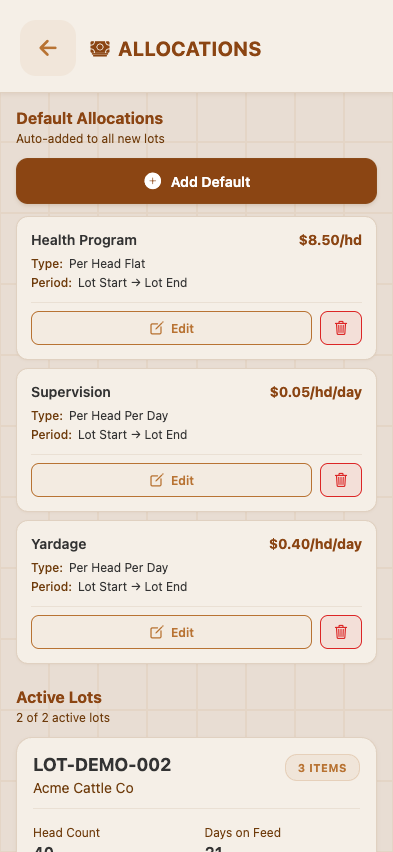
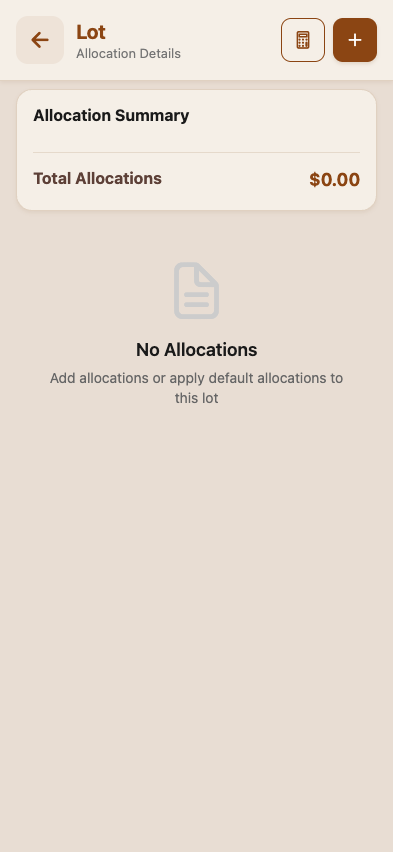
Allocations
Recurring costs that aren't feed or treatment — yardage, interest, death loss reserves, supervision fees — are managed as allocations. Each allocation has a rate type (per head per day, per head flat, per pound gained) and applies to specific lots.
Per-lot configuration overrides defaults. The operator opens a lot to see and edit its specific allocations.
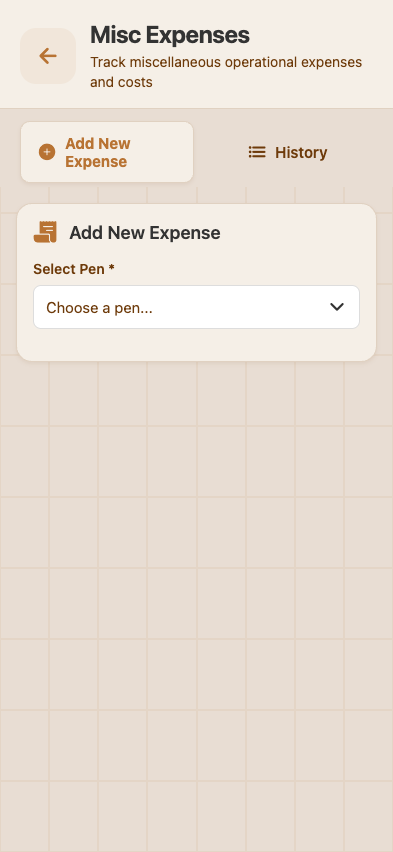
Misc expenses
For one-off operational costs — equipment repair, hauling, supplies — the Misc Expenses module captures them with a category, lot, and amount.
Invoicing & customers
Screen tour · swipe →
Invoicing
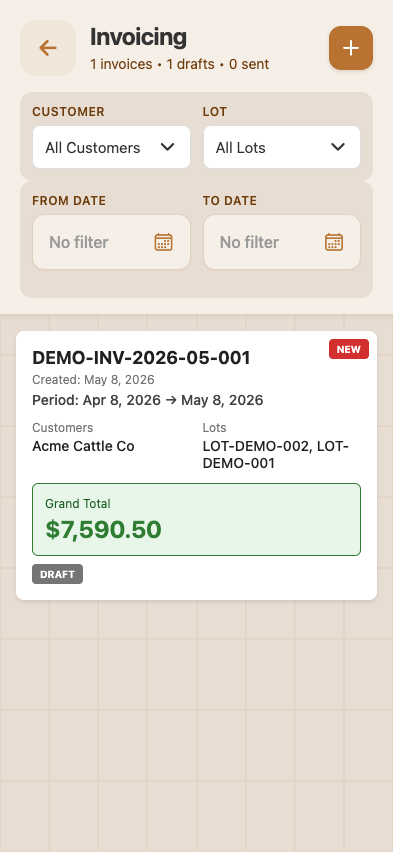
For partnership cattle and contract feeding arrangements, the operation invoices customers. The invoicing module aggregates costs across feed, treatment, processing, allocations, and miscellaneous expenses for a date range — proportional to the customer's ownership percentage in each lot.
The demo seed includes one draft invoice (DEMO-INV-2026-05-001) for Acme Cattle Co covering 30 days at 1,170 head-days, $7,590.50 grand total. Each invoice can be exported to PDF for printing or emailing. The PDF uses ReportLab on the backend with a clean letterhead, itemized line items, and totals.
Manure load management
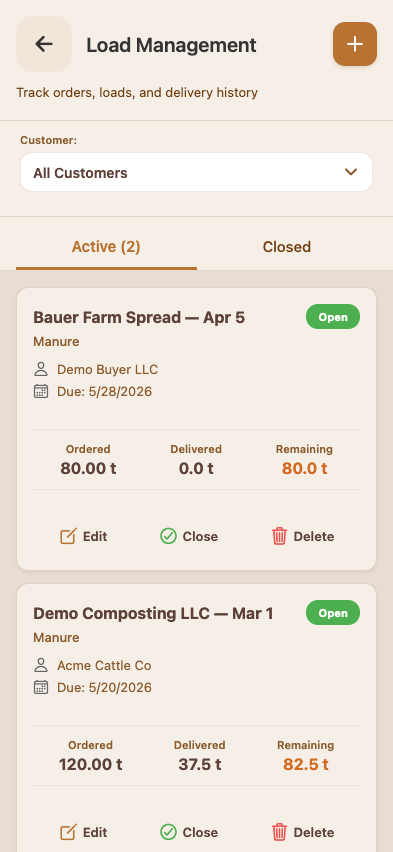
Operations that haul manure or compost (entitled via
Operation.has_manure_module) get a 15th dashboard card —
Load Management. The hub tracks orders, individual
loads (truck trips), and delivery history.
Each order has a target tonnage, a customer, a date the work is
needed by, and a list of individual truck loads. The status
auto-progresses: open → near_complete (when ≤
20 tons remaining) → overfilled if a final load goes over.
PDF delivery receipts are exportable per order or batched.
Users, roles, permissions
Screen tour · swipe →
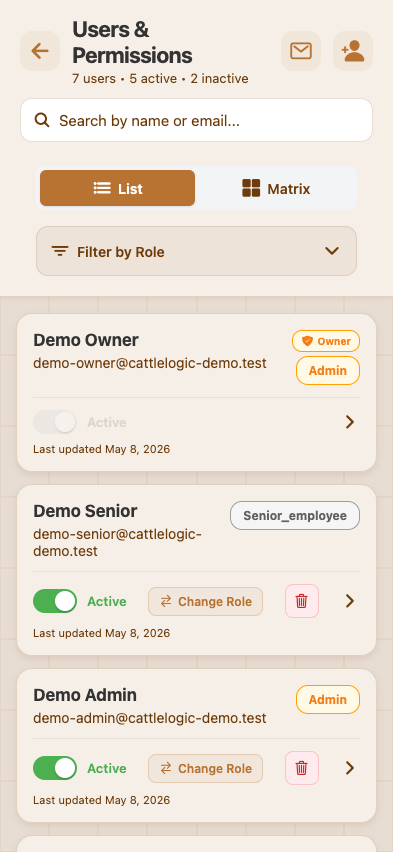
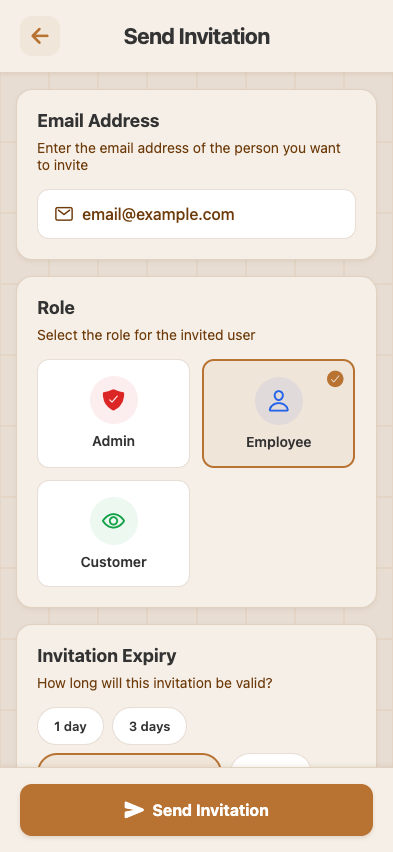
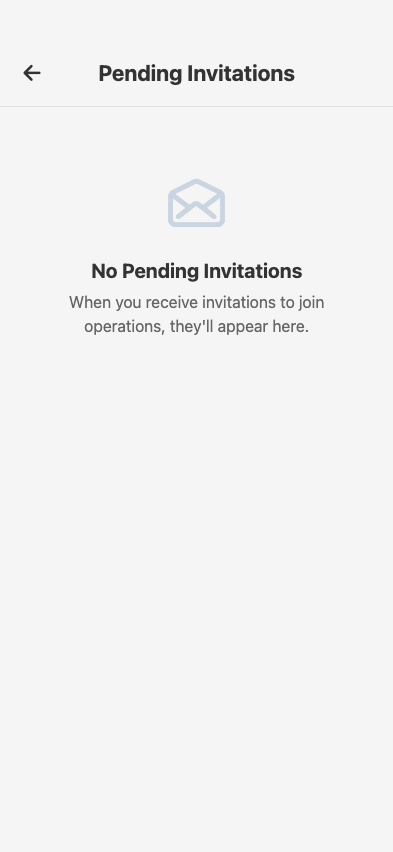

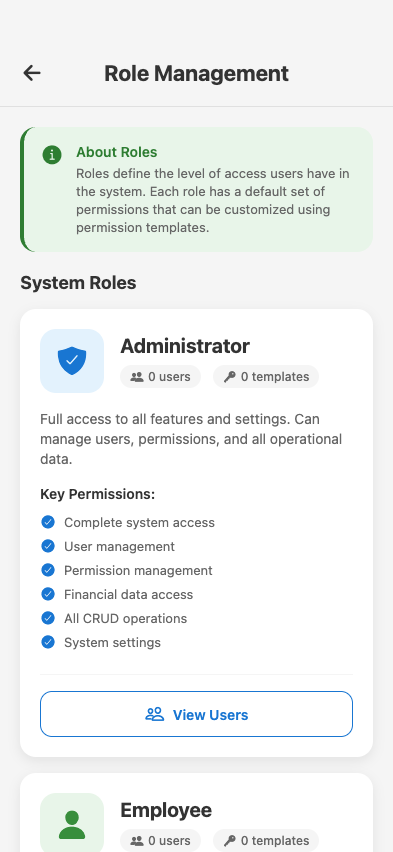
The Users & Permissions module is where the owner manages who can see and do what.
Inviting a new user
The owner clicks Send Invitation, picks a role (admin, senior employee, employee, customer), and optionally customizes permissions.
Pending invitations live in a queue; the recipient gets an email with an accept link.
A separate view shows already-sent invitations (accepted, declined, expired).
Roles
The four built-in roles map to defaults across all 14 modules. Admin has full access. Senior employee is admin-equivalent for daily ops but can't transfer ownership or close the operation. Employee can do feed/health/sorts but can't see invoicing or financial reports. Customer sees only their own cattle, treatments, and invoices.
Settings — operation, profile, notifications, billing
Screen tour · swipe →
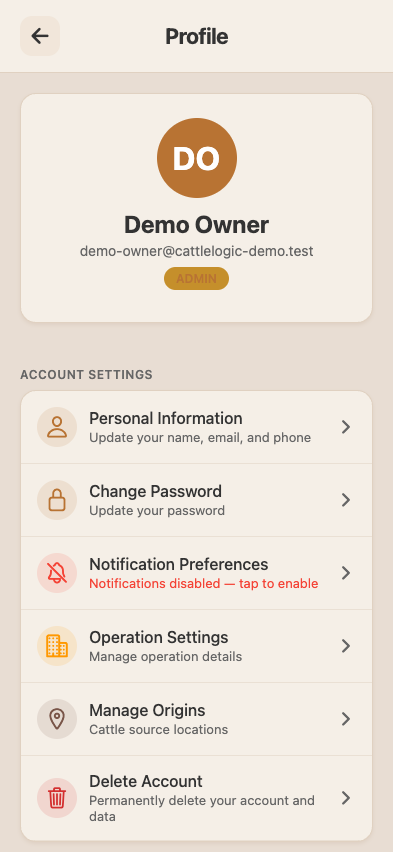
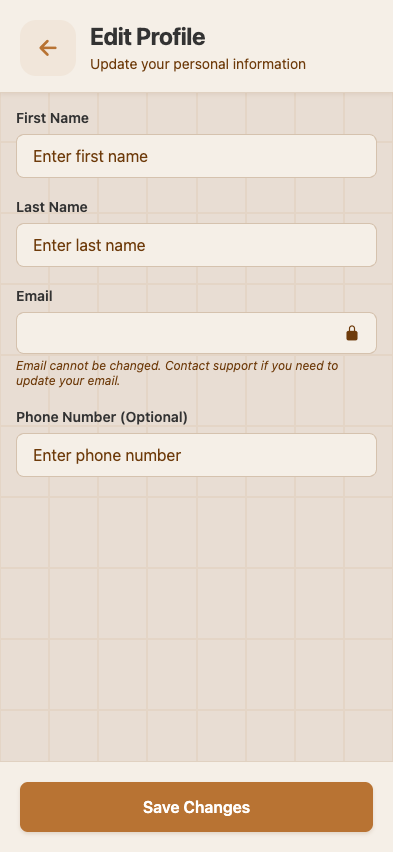
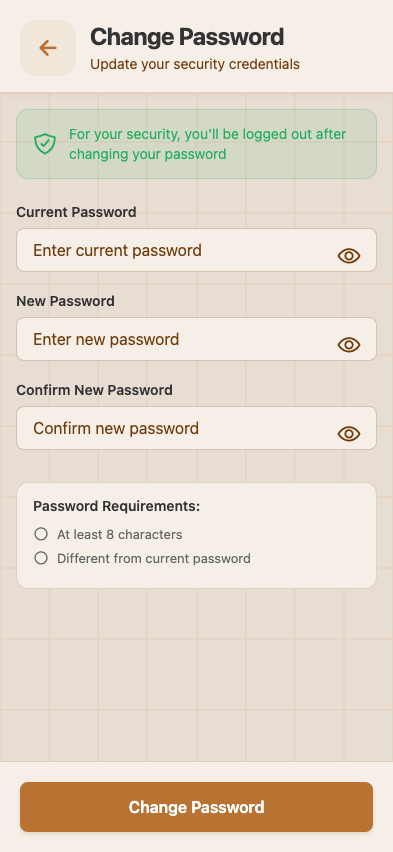
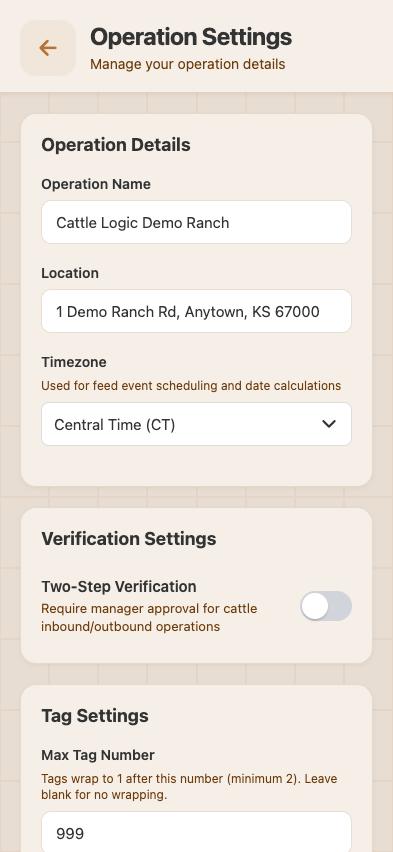
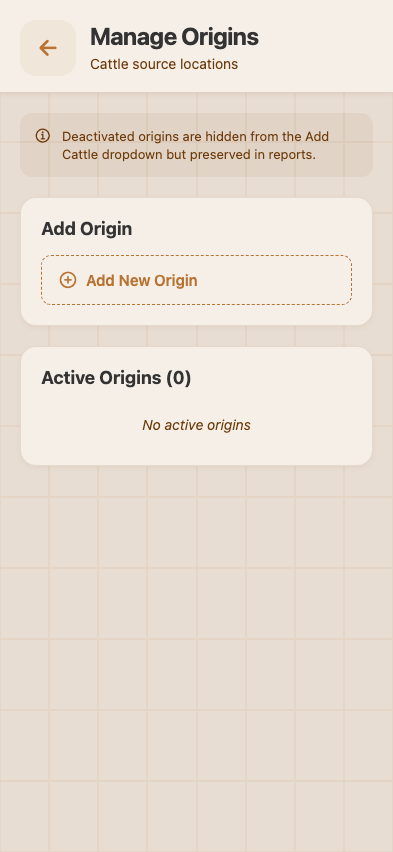
The user's avatar (top-right of the dashboard) opens the profile and settings stack.
Profile
The operator can edit basic info.
Or change password.
Operation settings
Operation-level config: name, location, time zone, 2-step verification, report scheduling, head count corrections.
Manage origins
Origins are the source-of-cattle labels the operator uses on incoming receipts (Heartland Livestock, Salina Sale, etc.). They can be deactivated when no longer used; old records keep their historical origin.
Notification settings
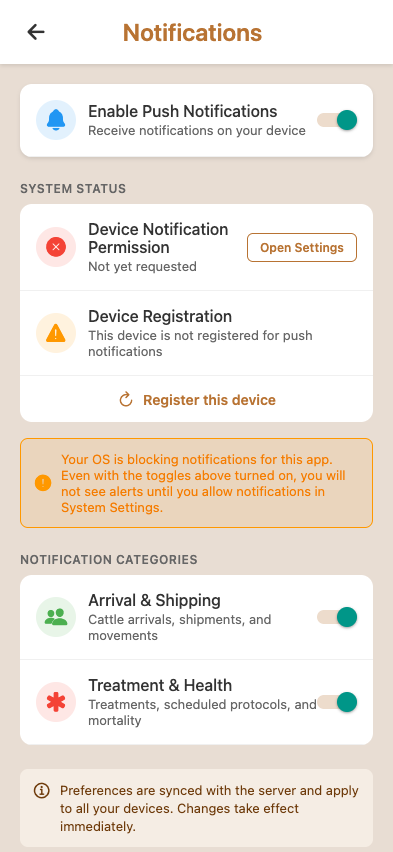
Per-user notification preferences. The operation can also configure which notifications go to which users for each event type.
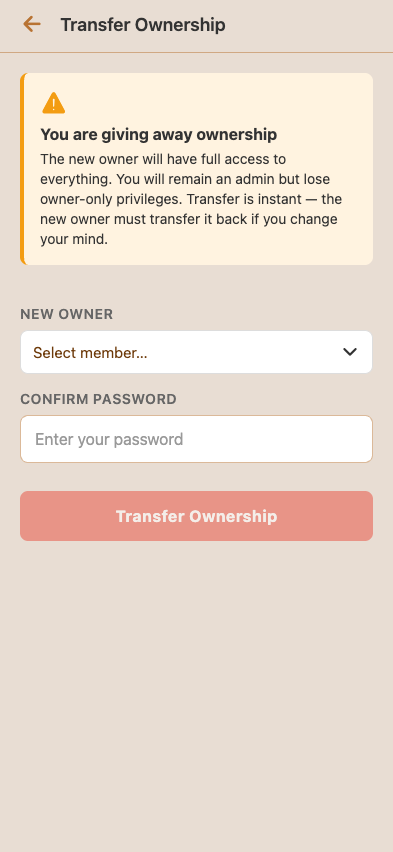
Transfer ownership / close operation
Two destructive owner-only actions. Both require the owner's password and are rate-limited (3 attempts per hour, collectively).
Page reference (sitemap)
For the customer who wants to know "where do I do X?", a flat URL list. All paths are SPA routes — refresh-safe in the deployed web build.
Authentication
| Path | What |
|---|---|
/login |
Email + password |
/signup |
Invitation acceptance |
/verify-otp |
Email verification OTP |
/forgot-password |
Reset request |
/reset-password-otp |
Reset OTP |
/reset-password-confirm |
New password |
/select-operation |
Multi-operation picker |
Core lifecycle
| Path | What |
|---|---|
/dashboard |
Module grid |
/pen-management |
Animal Inventory — pens & lot assignments |
/cattle-in-out |
Shipping & Receiving hub |
/add-cattle |
Record new arrival |
/edit-cattle?inboundId=... |
Edit existing arrival |
/cattle-details?inboundId=... |
View arrival detail |
/history |
Cattle history (in/out) |
/receiving |
2-step verification queue |
/shipping |
Outbound list |
/cattle-owned |
Per-customer inventory |
/purchases |
Purchase groups |
/sales |
Sale groups |
/sort-merge |
Sort & merge form |
Feed
| Path | What |
|---|---|
/feed-management |
Daily feed dashboard |
/feeding |
Per-pen feeding list |
/feed-entry |
Single-pen feed call |
/feed-entry-enhanced |
Batch feed entry |
/create-ration |
New ration form |
/view-ration?rationId=... |
Ration detail w/ load calculator |
/ration-history |
Version history |
/create-ingredient |
New ingredient |
/feed-graph |
DM consumption chart |
/pen-feed-detail |
Per-pen feed history |
Health
| Path | What |
|---|---|
/health (via dashboard click) |
Health Management hub |
/add-treatment |
Record treatment |
/edit-treatment?id=... |
Edit a treatment |
/treatment-detail?id=... |
Treatment detail |
/scheduled-treatments |
Upcoming queue |
/edit-scheduled-treatment?id=... |
Edit scheduled |
/tag-detail?tag=...&lotId=... |
Per-tag history |
/mortality |
Mortality list |
/mortality-details?mortalityId=... |
Mortality detail |
/create-protocol |
New protocol |
/edit-protocol?protocolId=... |
Edit protocol |
/protocol-details?protocolId=... |
Protocol detail |
Inventory
| Path | What |
|---|---|
/inventory |
Feed & Pharma hub |
/add-commodity |
Add commodity load |
/commodity-details?commodityId=... |
Commodity detail w/ load history |
/pharmaceutical-details?pharmaceuticalId=... |
Pharma detail w/ batches |
/hospital-pen-management |
Hospital pen state |
Reports
| Path | What |
|---|---|
/reports |
Reports & Analytics hub |
/lot-closeout?lotNumber=... |
Lot closeout report |
Buy sheets
| Path | What |
|---|---|
/buysheet (via dashboard) |
Buy sheet index |
/create |
Create buy sheet |
/edit?id=... |
Edit buy sheet |
/futures-board |
CME futures grid |
Other modules
| Path | What |
|---|---|
/active-lots |
Allocations dashboard |
/lot-allocations?lotId=... |
Lot-specific allocations |
/misc-expenses |
Miscellaneous expenses |
/processing |
Processing records |
/protocols |
Processing protocols |
/invoicing (via dashboard) |
Invoicing list |
/manure-management |
Manure / compost load management hub |
Users & permissions
| Path | What |
|---|---|
/users-permissions |
User management hub |
/send-invitation |
Send invitation |
/pending-invitations |
Pending list |
/sent-invitations |
Sent list |
Settings
| Path | What |
|---|---|
/profile |
Current user profile |
/edit-profile |
Edit profile |
/change-password |
Change password |
/operation-settings |
Operation config |
/notification-settings |
Notification prefs |
/manage-origins |
Origin management |
/manage-roles |
Role defaults |
/transfer-ownership |
Transfer to new owner |